Windows 11: Installing Python 3.x
There are several ways to install and manage Python on your machine. The simplest option is sourcing Python directly from the Python Software Foundation website. If you are new to Python and unfamiliar with package managers this install guide is written for you.
⚠️ If you are an Anaconda and/or Chocolatey user, this install guide is not for you. The teaching team assumes that you are familiar with managing your Python installation utilizing a package management system invoked from a command line interface (CLI) such as Command Prompt, PowerShell or Git Bash. As is noted below we recommend that you run the latest stable version of Python supported by Ananconda or Chocolatey.
1.0 Check for previous install
First, confirm whether or not Python is installed on your machine.1.1 Open Command Prompt
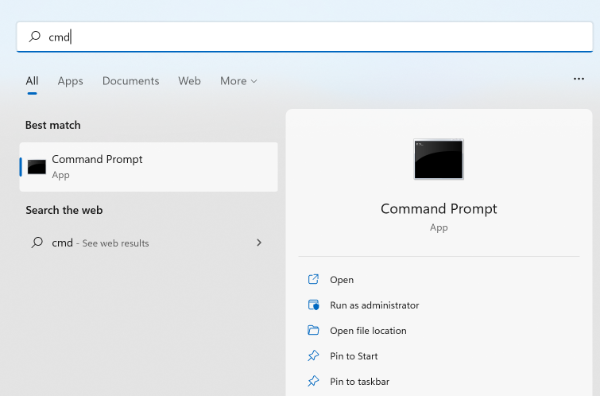
Click the Search button on the taskbar and enter “Command Prompt” or “cmd” in the search input
box. The search results should return the Command Prompt app. Open the Command Prompt app (you
can also select “Run as administrator” to open the app with admin privileges).
1.2 Check if Python 3.x is installed
At the prompt, type python --version and then press Enter. If Python is installed the
version number will be returned:
C:\Users\arwhyte> python --version
Python 3.14.2
Otherwise, the message “Python was not found . . . .” will be returned.
C:\Users\arwhyte> python --version
Python was not found . . . .
Type “exit” at the prompt and then press the Return key to close the Command Prompt.
1.3 Running older versions of Python
If Python 3.12.x or 3.13.x is installed on your machine (where “.x” equals an incremental version number, e.g., 3.14.2) you do not need to upgrade to the latest stable verison of Python for this class. That said, we encourage you to run the latest stable release in order to leverage the latest improvements to the language.
If you are running an earlier version of Python 3 you can remove it by clicking the search button on the taskbar and entering “add or remove” or “uninstall” in the search input box. Open “Add or remove programs”. Scroll down the list of installed apps and when you reach Python, click on it and then click the “Uninstall” button. Also uninstall the Python Launcher.
2.0 Download the Python Install Manager
Once you’ve checked your machines for previous Python installs, visit the Python Software Foundation website and download the Python Install Manager.2.1 Install Python 3.x
After downloading the Python Install Manager, double-click the downloaded file to launch the installer. Click the blue “Install Python” button to commence the installation.
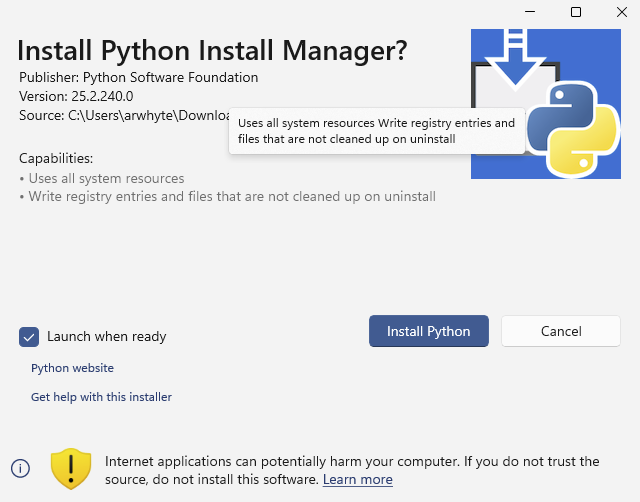
The Install Manager will launch the Windows Terminal. You will be guided through the installation process in the Terminal window.
2.1.1 Allow long paths
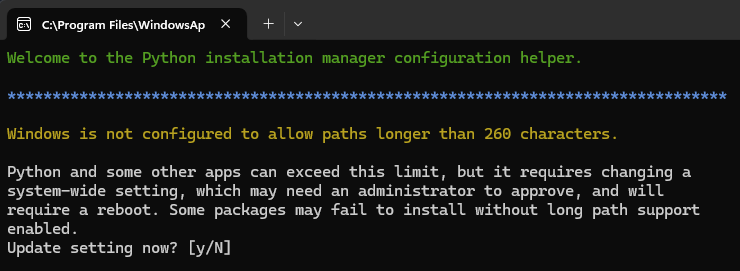
In the Windows Terminal window, type “y” to enable long paths.
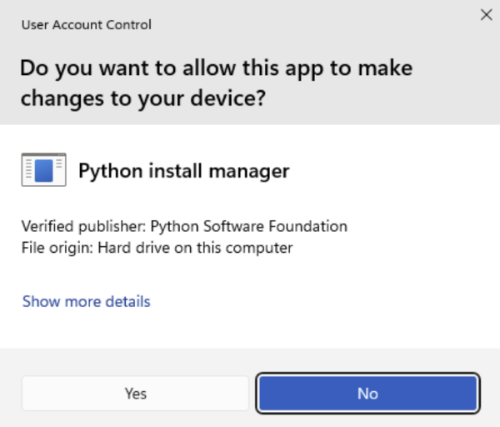
A pop up window may appear asking for permission for the Install Manager to make changes to your device. Click the “Yes” button to allow the installation to proceed.
2.1.2 Delete deprecated Python Launcher (if previously installed)
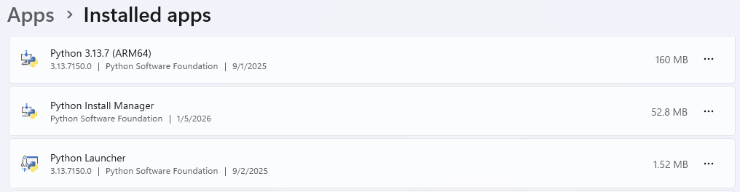
If you have installed an earlier version of Python using the Python Software Foundation installer, you may be prompted to delete the deprecated Python Launcher. Type “y” to open the Windows Systems Settings installed apps list.

In the Settings window, scroll down the list of installed apps to locate the “Python Launcher”. Click the three dots to reveal the “Uninstall” option. Click “Uninstall” to remove the Python Launcher from your system.
💡 If one or more versions of Python are listed in the installed apps list, you can uninstall them at this time as well.
2.1.3 Global shortcuts (PATH)
Next, type “y” to add Python to the system PATH.
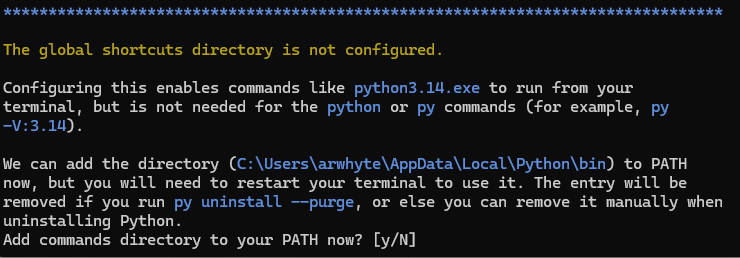
❗ If you fail to add Python to the system PATH, you will need to specify the full path to the Python executable each time you want to run Python from the terminal. Avoid this awfulness by adding Python to the system PATH now.
2.1.4 Install Python 3.x
Next, type “y” to install the latest version of CPython (e.g., Python 3.14.2).
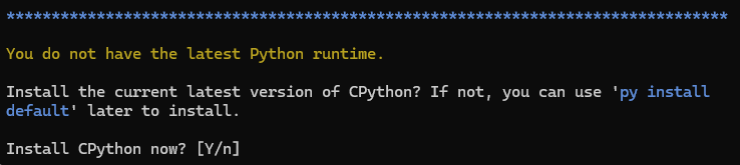
2.1.5 Exit installation process
When the installation is complete, a list of py command options is displayed. You can click “y” to view online help or “N” to exit.
💡 Declare victory by typing “N” to exit the installation process.
The installed apps list will now include the Python version you just installed along with the Python Install Manager.

3.0 Download Python 3.x (Deprecated)
❗ The Python Software Foundation’s Python Install Manager is now the preferred method for installing Python on Windows. The instructions below are deprecated but remain a viable installation option for Python 3.14.2. When Python 3.15 is released, this section will be removed.
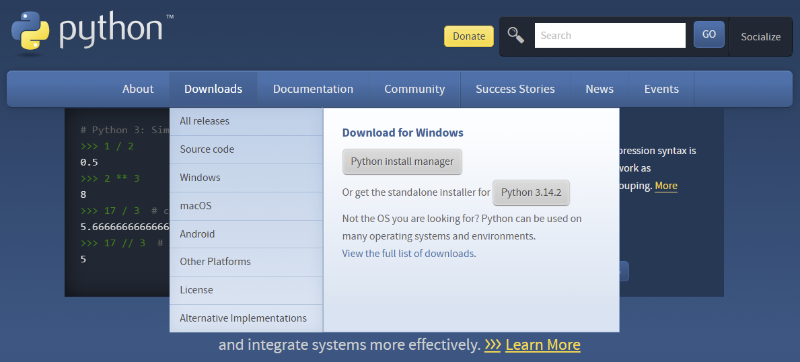
Hover over “Downloads” on the blue menu bar. Your Windows operating system version should have been detected on the page load. Click the grey Python 3.14.2 button to download the install package.
3.1 Install Python 3.x
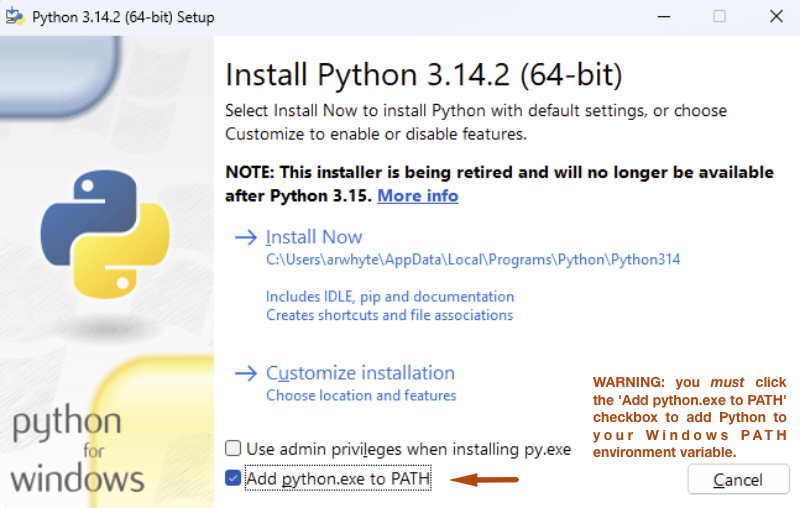
Adding Python to the PATH variable ensures that you can call python directly from the
Command Prompt or PowerShell. If you fail to click the checkbox you (or likely your friendly
instructor or GSI) will need to set your Python environment variables manually. Manually adding
Windows environment variables is tedious work.
Do this:
-
Click the “Add python.exe to PATH” checkbox
-
Click “Install Now”
-
Click the “Yes” button to allow the installer to make changes to the system.
At the end of the installation process you have the option to disable the 260 max character path length limit. I opted to disable it.
3.2 Confirm installation
Restart Command Prompt and confirm that Python 3 has been installed successfully.
C:\users\arwhyte> python --version
Python 3.14.2
4.0 Source code editor
The Python installer also installs Python’s Integrated Development and Learning Environment (IDLE).
The IDLE app provides a multi-window text editor, interactive shell window, search/replace, and
debugger. It is one of several text editors that you can use to write and test Python code. However,
we do not use it.
Instead, we use Microsoft’s popular (and free) Visual Studio Code which serves as the default source code editor for this course. See the relevant companion guide for installation instructions.